


Cast for Chromecast & TV Cast
3.96.69K Reviews
App Specs
- Version
- 4.2.5
- Updated On
- License
- Free
- Downloads
- 50,000,000+
- Developer
- iKame Applications - Begamob Global
- Categories
- Tools
- Platform
- Android
Screenshots
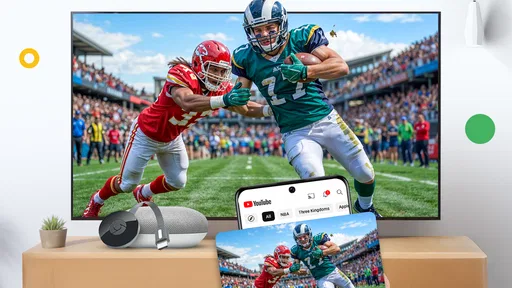
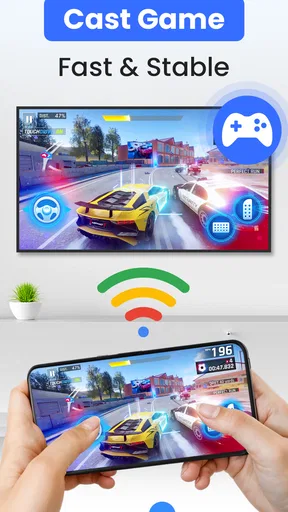
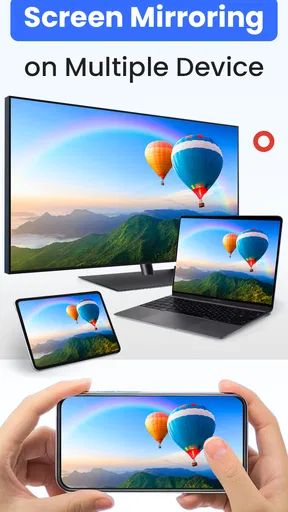
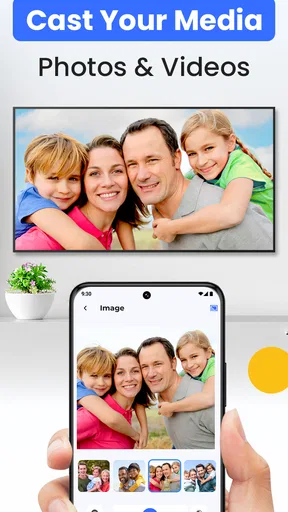
 Analysis by AppCompare
I see Cast for Chromecast & TV Cast as a convenient bridge between the media on a phone and a Chromecast-equipped TV: useful when I want to put a photo, a clip, or a web video on a larger screen without turning the process into a project. It is a free tools app from iKame Applications - Begamob Global, and its appeal is straightforward rather than ambitious. It aims to make casting accessible, and I think it is best judged as a handy companion for occasional everyday sharing—not a replacement for every TV app or a guarantee that every online video will play perfectly.
Where a phone-to-TV cast earns its place
The main benefit is flexibility. A TV’s built-in apps are usually the simplest choice for watching a familiar streaming service, but they are less convenient when the thing I want to show is already on my phone or sitting on a webpage. A casting tool can fill that gap: I can choose content on the device I already have in hand, then use the television for the shared viewing.
That makes this sort of app especially practical for a quick family moment. I might be looking through a weekend’s photos and want everyone on the couch to see them, rather than passing a phone around. For a gathering, casting a video or a playlist can also spare the host from crowding around a small display. The real value is not simply a larger picture; it is keeping selection and basic control on the phone while the TV becomes the communal screen.
What to check before you start
For the smoothest setup, I would first make sure the phone and Chromecast are ready to work together on the same home network, then open the app and look for the television before choosing what to play. If the device does not appear, I would check the network connection and the Chromecast’s own setup before repeatedly restarting the app. Casting depends on the receiving device and network as well as the phone, so a connection problem is not automatically an app problem.
It is also worth deciding what kind of viewing matters most. Photos and personal videos are a natural fit for showing something already stored on the phone. Web casting is more variable: a page can contain several kinds of media, and not every site handles playback in the same way. When a particular service offers its own cast control, I would try that first for a long film or regular viewing session; a dedicated service app is often the more direct route, while this app is more useful when I want a general-purpose way to send different material to the TV.
Useful habits for a better viewing session
A small but helpful habit is to test the exact video before everyone settles in. Start playback, check that sound and picture are behaving as expected, and only then hand the session over to the room. That quick check can prevent the awkward pause of troubleshooting while guests are waiting. If a video is important, keeping the phone nearby also makes it easier to pause or adjust playback without searching for a separate remote.
For a photo slideshow, I would curate the selection on the phone first rather than scrolling through a large camera roll on the TV. That keeps the shared viewing focused and avoids exposing unrelated pictures as I search. For cooking, I might cast a short instructional clip and leave the phone available for checking the written recipe; for travel planning, I could bring up a webpage or saved images for everyone to discuss. These are modest workflows, but they show where a flexible casting tool can be more useful than opening another account-based TV app.
Worth Reading Before You Choose

Flipboard Shows What News Apps Must Do Beyond the Feed

Switching to Android Auto Means Rethinking Your Driving Routine

Google Calendar Makes a Crowded Week Easier to Manage

Ludo King Makes the Most of the Minutes Between Plans

Baby Panda World Brings Quick Play to Modern Phones, but Its Game Library Feels Busy

ESPN’s Live Game View Makes Following Close Games Easier
Who will appreciate it—and who may prefer another route
I would recommend trying it if you often want to share personal media, web videos, or other phone-selected content on a Chromecast-connected television and prefer one familiar starting point. It is also a reasonable option for someone who does not want to learn a complicated media setup just to show a few clips. The app is free to start, is rated for Everyone, and has an average rating of 3.9 from around 968,000 ratings, with over 50 million installs. Its current version is 4.1.9, and it requires Android 7.0 or later.
I would be more cautious if your main goal is dependable, all-evening viewing of a specific streaming service, precise subtitle handling, or a setup that works without a compatible receiver. In those cases, the service’s own TV app, the Chromecast’s built-in options, or another receiver-specific method may be simpler. A cast app cannot remove the practical limits of a weak home network, a site’s playback behavior, or the receiving device. If the TV is not discoverable, checking those basics is more useful than assuming a feature is broken.
Getting Started with Cast for Chromecast & TV Cast
First things first, the setup was pretty straightforward. I downloaded the app from the Play Store (it's available on iOS too), and within minutes, I was ready to roll. The app guides you through a simple setup process, syncing with your Chromecast device in a snap. No fuss, no muss.
Once the app was up and running, I was greeted with a clean, intuitive interface. Everything is clearly laid out, and even if you're not particularly tech-savvy, you'll find your way around with ease. The app does a good job of presenting options without overwhelming you with too many settings or choices.
Features That Make Life Easier
One of my favorite features is how seamlessly Cast for Chromecast & TV Cast handles different types of media. Whether you're casting videos, music, or photos, the app maintains a smooth connection without any noticeable lag or buffering. This is especially great when you're showing off vacation photos to family or vibing out to some tunes during a party.
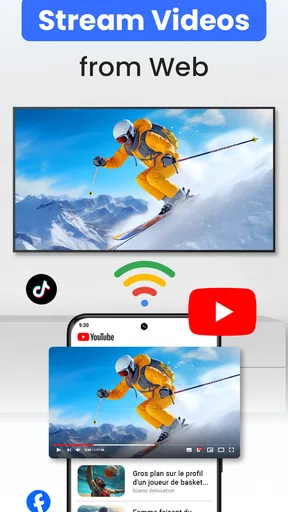
Another cool aspect is the ability to browse the web right from the app and cast any media you find directly to your TV. Imagine scrolling through a recipe on a website and instantly casting a cooking video tutorial to your screen. It's like magic! Plus, it supports HD quality, so everything looks crisp and clear.
Pros and Cons? Let’s Just Say It Gets the Job Done
Now, I know I said I wouldn’t list pros and cons, but let me just slip in this thought: the app really does what it promises. It’s reliable and doesn’t crash unexpectedly, which is more than I can say for some other apps I’ve tried. If you’ve ever been in the middle of a movie and had your stream randomly cut off, you know how frustrating that can be.
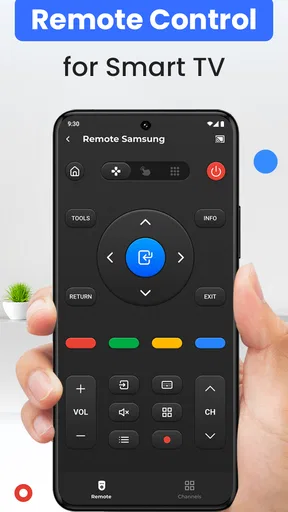
The app also allows you to control playback from your phone, so you can pause, rewind, or fast-forward without having to fumble around for the remote. This is especially handy if you’re one of those people who always misplaces the remote (guilty as charged!).
Minor Gripes and Considerations
Okay, so not everything is sunshine and rainbows. While the app is generally a joy to use, I did encounter a minor hiccup with subtitle support. Sometimes, it took a bit of tweaking to get subtitles to display correctly, especially with some of my older video files. It’s not a dealbreaker, but something to keep in mind if subtitles are a must-have for you.
Also, while the basic features are free, some of the more advanced options are locked behind a paywall. This includes things like removing ads and accessing premium themes. If you’re someone who plans on using the app frequently, it might be worth shelling out the extra cash for the premium version.
Final Thoughts
All in all, Cast for Chromecast & TV Cast is a solid choice for anyone looking to cast media from their phone to their TV without any headaches. It’s user-friendly, reliable, and it does exactly what it promises. Whether you’re a tech newbie or a seasoned pro, this app is sure to enhance your streaming experience. So go ahead, give it a try and enjoy your media on the big screen!
One other practical point is how to think about the cost. The app itself is free, while in-app purchases range from $2.99 to $43.99 per item. I would try the free experience first and pay only if a specific premium option solves a problem I actually have. A one-off need to show holiday pictures is a different case from using the app every week, and neither situation makes an upgrade automatically worthwhile.
When casting is not the same as mirroring
It helps to distinguish sending selected media from mirroring an entire phone display. A cast workflow is usually preferable when I want a video or photo on the TV while still using my phone for other tasks. Full-screen mirroring, when available through the device and receiver, is better for showing an app interface or something that cannot be selected as a standalone media item, but it can also expose notifications and other on-screen activity. I would choose the least intrusive method that suits the content, especially when sharing in a room with other people.
For a long movie night, I would start with the TV’s native app or the streaming service’s own cast button if it offers one. Those routes remove an extra step and are often easier to resume later. I would turn to this app when the content is scattered across my phone and the web, or when I want a single place to try sending different kinds of media. That distinction is the clearest way to avoid expecting a general casting utility to behave like a full entertainment platform.
Small troubleshooting choices that save time
If a clip refuses to start, I would narrow down the cause rather than changing several settings at once. Try another item, then check whether the same receiver appears and whether the original video plays normally on the phone. If one web clip fails while photos or another video work, the issue may be specific to that page’s playback rather than the whole connection. If nothing appears on the TV, check the receiver and network first. This simple process helps identify whether the trouble follows the content, the connection, or the receiving device.
Network quality matters most when the media is being fetched online, because the phone, router, and TV-side receiver all have a part in the experience. For personal videos, starting with a short clip is a useful test before choosing a long recording. I would also avoid treating a brief pause as proof that the app has failed: give the connection a moment, then decide whether to retry or use a more direct playback option. These checks cannot guarantee a perfect session, but they make the common hiccups less frustrating.
A sensible choice for occasional sharing
My recommendation is strongest for people who want a practical way to put phone-selected content on a compatible television without making every viewing session depend on a separate TV app. It suits family photo browsing, a quick tutorial in the kitchen, and informal gatherings where the phone is already being used to choose what everyone sees. I would skip it as a first choice if I needed flawless subtitles, relied on one streaming service for nearly all my viewing, or expected casting to work independently of the home network and receiver.
Overall, I like the app’s role more than I would ask it to do everything. Its broad purpose is useful, but the best results come from matching the method to the content: use the service’s own TV option for routine streaming, and use this app when flexibility across phone media and web content matters more. That makes it an easy tool to keep available if those situations come up, while leaving room for a more specialized option when reliability or a particular playback feature is the priority.
Pros
- Easy setup and user-friendly interface.
- Supports a wide range of video formats.
- Streams media with minimal buffering.
- Compatible with most smart TVs.
- No need for additional hardware.
Cons
- Contains in-app ads that can be intrusive.
- Some features require a premium upgrade.
- Limited compatibility with older devices.
- Occasional connectivity issues reported.
- No support for casting DRM-protected content.
FAQs for Cast for Chromecast & TV Cast
What devices are compatible with Cast for Chromecast & TV Cast?
Cast for Chromecast & TV Cast is compatible with a wide range of devices, including Android phones and tablets, as well as iOS devices like iPhones and iPads. It works seamlessly with Chromecast devices and many smart TVs that support casting. Ensure your device and the TV are on the same Wi-Fi network for optimal performance.
How do I set up Cast for Chromecast & TV Cast?
Setting up Cast for Chromecast & TV Cast is straightforward. First, connect your device and Chromecast or smart TV to the same Wi-Fi network. Open the app, select the content you want to cast, and tap the cast icon. Follow any on-screen instructions to complete the setup and start streaming.
Is there a cost associated with using Cast for Chromecast & TV Cast?
Cast for Chromecast & TV Cast offers a free version with basic features, but to access premium features such as ad-free streaming and higher quality options, you may need to purchase a subscription or make in-app purchases. Check the app store for detailed pricing information and offers.
What types of content can I stream using Cast for Chromecast & TV Cast?
With Cast for Chromecast & TV Cast, you can stream a wide variety of content, including videos, photos, and music from your device. It also supports casting from popular streaming services and online platforms, allowing you to enjoy TV shows, movies, and more directly on your big screen.
Are there any known issues or limitations with Cast for Chromecast & TV Cast?
While Cast for Chromecast & TV Cast is generally reliable, some users may experience connectivity issues or a delay in streaming. These can often be resolved by ensuring both devices are updated and connected to a strong Wi-Fi network. Additionally, some content may not be supported due to DRM restrictions.


